How to Use Nano Banana for Free on Miraflow AI

Written by
Jay Kim
Learn how to use Nano Banana for free on Miraflow AI. This step-by-step guide shows how to generate and edit AI images, explore viral prompts, and iterate fast.
If you’ve already explored viral Nano Banana prompts, the next step is simple: actually generating images and seeing how those prompts perform in practice.
Miraflow AI lets you use Nano Banana directly in your browser at no cost, with no installation, no local setup, and no technical overhead. Whether you’re creating images from scratch or transforming existing photos, the workflow is designed to make experimentation fast and intuitive.
This guide walks through exactly how to use Nano Banana for free on Miraflow AI.
Two Ways to Create Nano Banana Images on Miraflow AI
Miraflow AI offers two main tools for Nano Banana image generation:
- AI Image Generator (Text-to-Image)
- AI Image Editor (Image-to-Image)
A simple analogy:
- Text-to-Image is like giving a director a script and letting them produce a scene from scratch.
- Image-to-Image is like handing the director an existing shot and asking for a “re-shoot” that keeps important structure but changes style, lighting, or context.
Both workflows are powered by Miraflow’s generation system, which includes Nano Banana and Miraflow’s own model.
How Miraflow Uses Nano Banana (and Our Own Model) Without Making You Pick
Many platforms force users to choose a model up front. That creates friction and, more importantly, it’s easy to pick the “wrong” tool for your specific prompt.
Miraflow takes a different approach:
- You write a prompt (and optionally upload an image).
- Our system evaluates what you’re trying to do.
- We route the request to the model that’s most likely to produce the best output for that intent.
Think of it like a modern phone camera:
You don’t choose “sensor A vs sensor B.” The camera app detects the situation (portrait, low light, motion) and switches modes automatically.
What “model routing” means (technical, but practical)
At a high level, routing is an internal decision process that selects which model should handle the request based on signals such as:
- Task type: text-to-image vs image-to-image
- The prompt’s intent: “viral template transformation” vs “clean product photo” vs “identity-preserving edit”
- Style requirements: heavy stylization vs photoreal vs graphic design look
- Constraint density: how many hard constraints you specified (layout, camera, lighting, materials)
- Risk factors: cases that tend to create artifacts (hands, text, faces, logos, clutter) and which engine handles them better
In other words: Miraflow tries to send your request to the engine that’s most compatible with the job, instead of making you guess.
Why routing helps (what you’ll notice)
Routing is designed to improve the things creators care about:
- Higher “first try” success rate (fewer regenerations just to get something usable)
- More consistent outcomes for common workflows (especially repeatable formats)
- Better handling of tricky cases (identity retention, clean backgrounds, product-style shots)
- Less UI complexity (you focus on the prompt, not model shopping)
Option 1: AI Image Generator (Text-to-Image)
This is the fastest way to turn a written idea into a fully generated image.
Step-by-Step: Creating an Image from Text
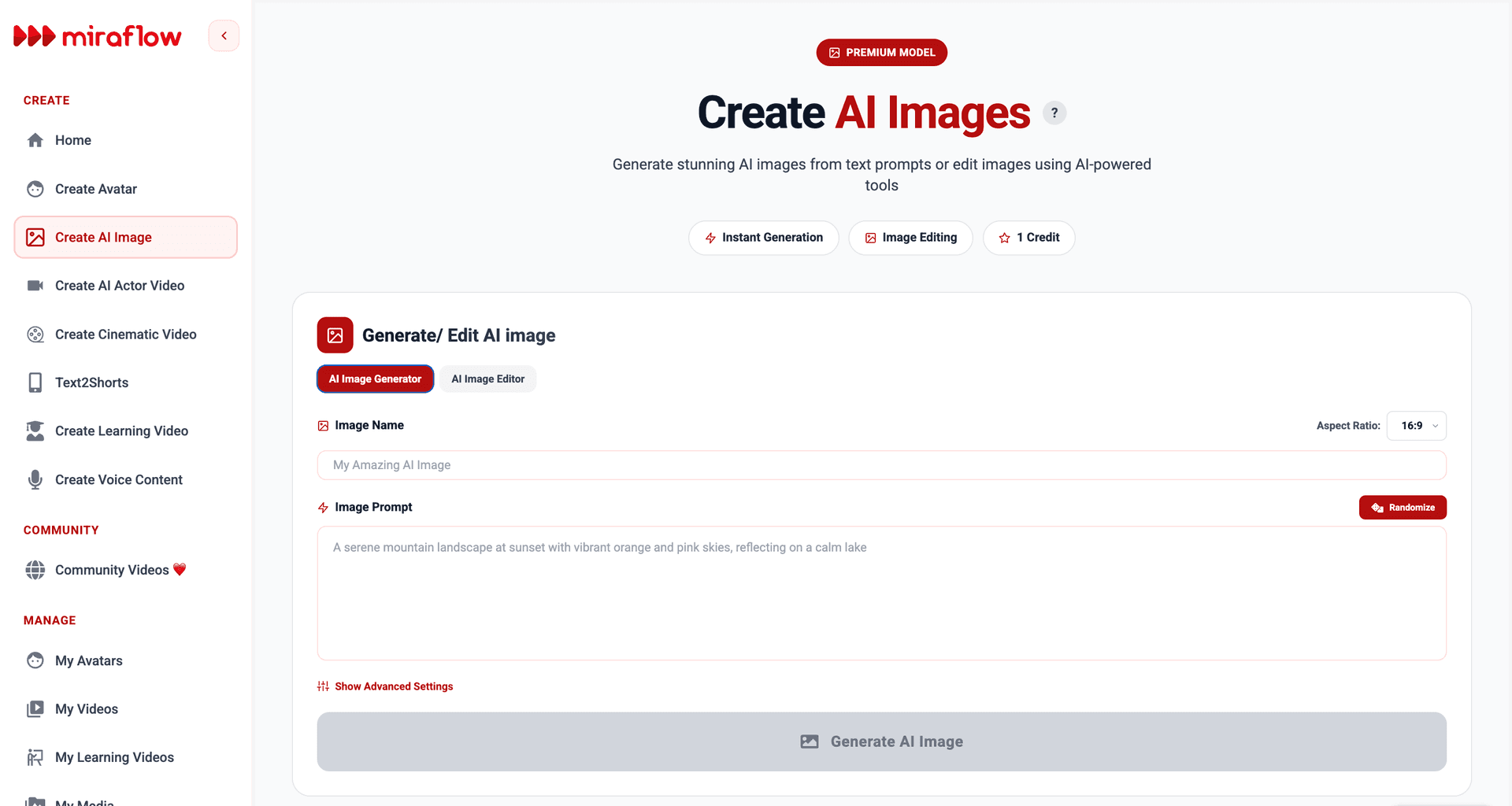
- Enter an image name
This helps organize your creations and makes it easier to find them later. - Write your image prompt
Describe what you want to create using natural, visual language.
If you’re not sure where to start, click the Randomize button to load example prompts for inspiration. - A reliable prompt structure is:
- Subject
- Setting
- Style/medium
- Lighting
- Camera/framing
- Quality constraints
- Choose an aspect ratio
Aspect ratio isn’t just cropping. It influences composition because the model “plans” the image for that canvas shape.
Select the format that fits your platform or use case: - 16:9 for landscapes or cinematic scenes (set as default)
- 9:16 for vertical content and social media
- 1:1 for profile or square posts
- 4:3 or 3:4 for editorial layouts
- (Optional) Open advanced settings
Here, you can: - Add a negative prompt to avoid unwanted elements
- A negative prompt reduces the likelihood of unwanted features by discouraging certain concepts during sampling.
Example:
“extra fingers, deformed hands, blurry, watermark, text, logo, artifacts”
- A negative prompt reduces the likelihood of unwanted features by discouraging certain concepts during sampling.
- Set a seed if you want reproducible results
- The seed is the reproducible random starting point. Keeping the seed fixed and changing one prompt clause at a time is the most controlled way to learn what your prompt is doing.

- Click “Generate AI Image”
The image generation starts immediately. You can monitor progress in the My Creations tab below.
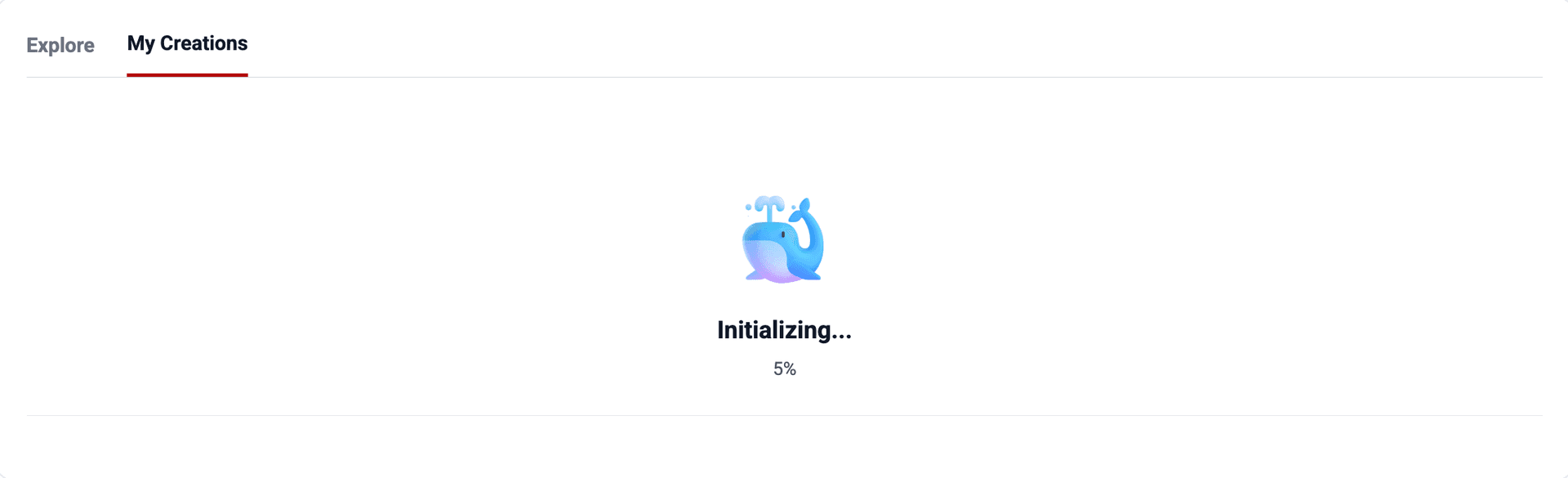
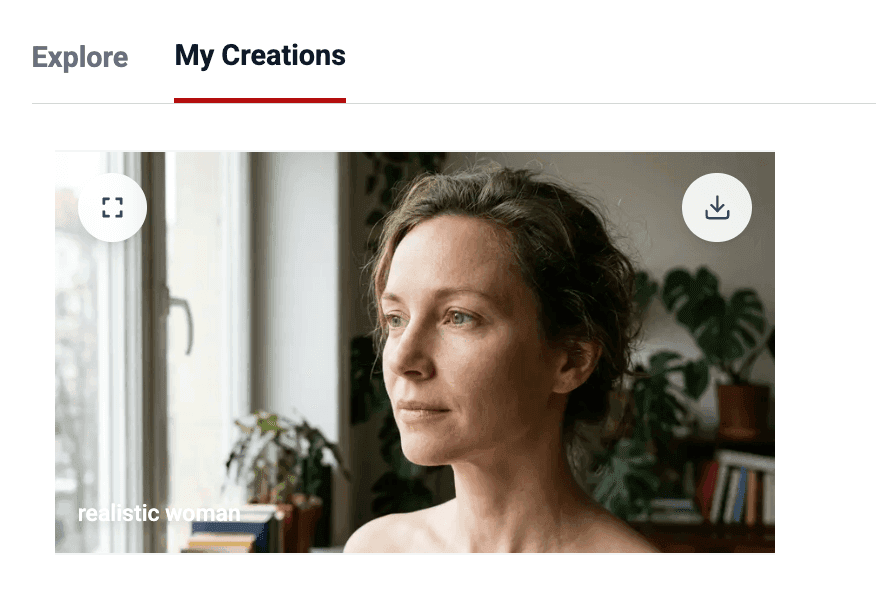
Once generation is complete, you can preview the image or download it directly.
What’s happening under the hood (simple technical view)
Most modern generators work by iterative denoising:
- The system starts from noise.
- Across multiple steps, the model refines the image toward what your text describes.
- Clear prompts act like clear constraints; vague prompts leave more decisions to the model’s learned defaults (priors).
Option 2: AI Image Editor (Image-to-Image)
If you want to transform an existing photo, the AI Image Editor is the better choice. Overall step is almost the same as AI image generator, you only have to upload the reference image first.
Step-by-Step: Editing or Transforming an Image
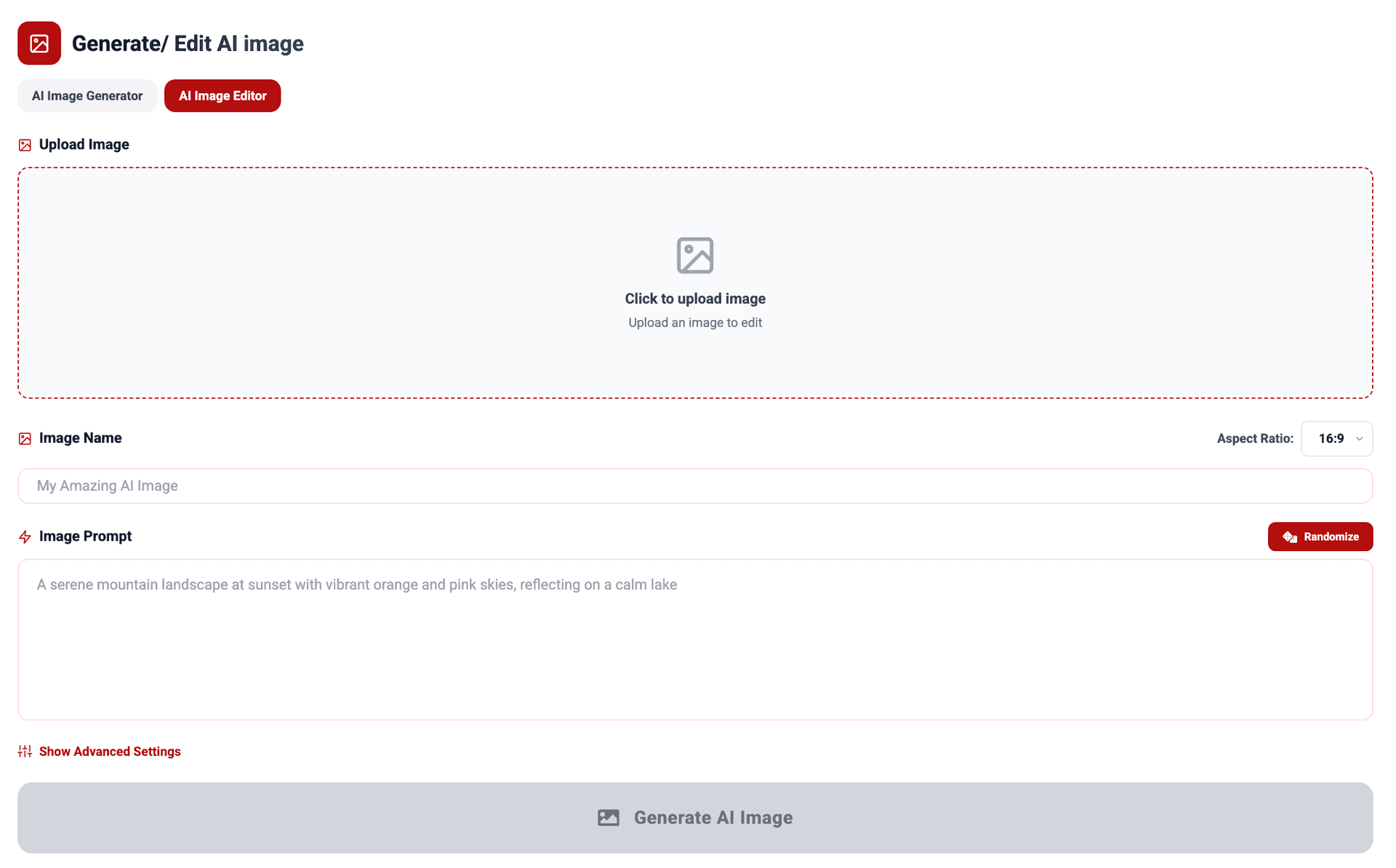
- Upload your image
This can be a portrait, product photo, pet image, or any reference you want to modify. - Enter an image name
Useful for tracking multiple edits or variations. - Write or edit the image prompt
Describe how you want the uploaded image to change. You can keep it subtle or completely transform the style. - A dependable prompt pattern:
- Preserve: what must remain the same (pose, identity, composition)
- Transform: what should change (style, background, materials, lighting)
- Finish: quality constraints (sharp focus, clean background)
“Preserve the subject’s pose and facial identity. Change the scene to a cinematic rainy neon street at night, shallow depth of field, sharp focus.”- Choose an aspect ratio
Match the output to your intended platform or format. - (Optional) Adjust advanced settings
Add negative prompts or a seed if needed. - Click “Generate AI Image”
Progress appears in My Creations, where you can preview or download the final result.
Technical tips for better edits
- Identity preservation works best when you explicitly say what to preserve (“same person,” “preserve facial features”) and avoid instructions that imply a different face.
- Large style jumps can increase drift. They can still work—just expect more variation.
- Clean backgrounds (“white seamless,” “studio cyclorama”) reduce clutter and improve consistency.
This workflow is ideal for identity-preserving edits, style changes, or creative transformations.
Explore Viral Nano Banana Use Cases with One Click
If you don’t want to start from scratch, Miraflow makes discovery easy.
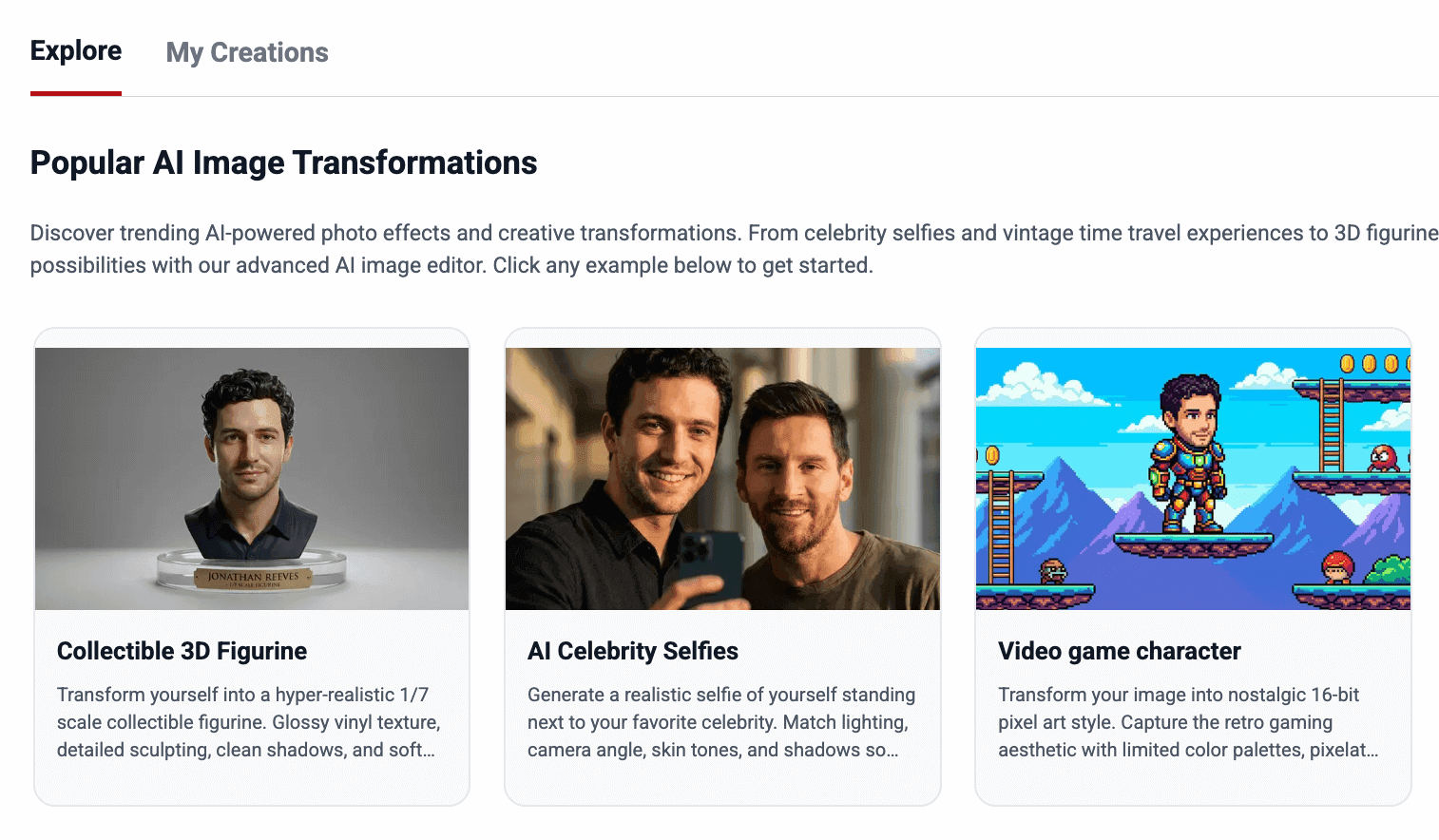
In the Explore tab, you’ll find Popular AI Image Transformations—a curated set of 10+ viral Nano Banana use cases. Each example card includes a ready-made prompt.
Here’s how it works:
- Click any example card
- The prompt is automatically filled in
- Upload your own image if required
- Edit the prompt if you want
- Generate instantly
These examples are perfect for:
- Learning how effective Nano Banana prompts are structured
- Getting inspiration for new ideas
- Reusing proven formats with your own images
Why this helps (technical reason)
Viral prompts typically succeed because they are “prompt templates” with stable constraints:
- a defined format
- a defined camera/framing
- defined materials and lighting
That reduces ambiguity, so the model can produce repeatable outputs.
It’s one of the fastest ways to understand what performs well without trial and error.
Why Miraflow Is Ideal for Learning Nano Banana
Using Nano Banana effectively comes down to iteration. Small prompt changes can dramatically affect results.
Miraflow is built for that process:
- Everything runs in-browser
- It’s fast to regenerate and compare results
- You can experiment at no cost
- Routing reduces guesswork because the system chooses the best engine for your intent
This makes Miraflow especially useful if you’re applying techniques from prompt guides and want to see real outcomes immediately.
Viral Nano Banana Prompts
You can check out 10+ proven prompt examples you can copy, tweak, and reuse, such as 'Collectible 3D Figurine', 'Hugging My Younger Self', 'Video Game Character (Retro Pixel Style)', etc.
You can also learn How to Write Nano Banana Prompts Efficiently as well.
Start Creating with Nano Banana for Free
You don’t need advanced tools or editing skills to start experimenting with Nano Banana.
If you have an idea—or even just curiosity—you can generate images for free on Miraflow AI, explore viral formats, and refine your prompts as you go.
Visit Miraflow AI, open the AI Image Generator or Editor, and start creating.